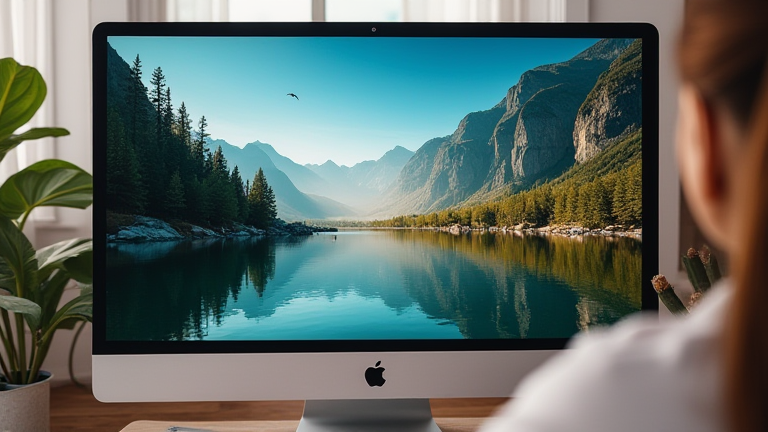
TL;DR: The best tools to turn a single photo into a scrolling ad video are CapCut (for auto-zoom and motion effects), Canva (for template-driven Ken Burns style), and Fliki or Runway (for AI-driven pan and voiceover). You don’t need any video footage—just one high-resolution image and a few taps to create a cinematic, scroll-stopping ad.
Why One Photo Is Enough for a Scrolling Ad
In the fast-paced world of travel and food content, attention spans are shorter than a shot of espresso. A static image often gets lost in the feed, but a scrolling ad video—where the camera slowly pans, zooms, or tilts across your single photo—creates instant motion that mimics a film clip. This technique, known as the Ken Burns effect, adds depth and storytelling without requiring you to shoot hours of b-roll. Whether you’re promoting a hidden café in Lisbon, a sunrise hike in Patagonia, or a personal growth retreat in Bali, one powerful image becomes the anchor for a narrative that feels alive.
If you want to dig deeper, check out our guide on Smart Textiles: Real-Time Monitoring for Chronic Conditions.
Top Tools to Make It Happen
1. CapCut (Free, Mobile & Desktop)
CapCut is the undisputed champion for beginner-to-pro motion effects. Import your photo, tap “Auto-Captions” for a voiceover, then use the “Keyframe” feature to manually set a start and end point for a slow zoom or pan. The app’s “Motion Blur” slider adds a smooth, cinematic feel. For travel content, use the “Speed Ramp” to start slow, speed up mid-video, and slow down at the end—perfect for a dramatic reveal of a dish or a mountain vista.
2. Canva (Free + Pro)
Canva’s “Magic Design” tool can take your photo and automatically generate a 9:16 vertical video with animated text overlays. Choose from templates like “Travel Reel” or “Foodie Highlight,” then adjust the “Ken Burns” animation to pan from left to right or zoom into the center. Canva also lets you add a subtle grain or vignette filter, which gives your still image a warm, documentary-style texture—ideal for cultural stories.
3. Fliki or Runway (AI-Powered)
If you want a voiceover without recording your own voice, Fliki uses AI to turn your photo into a video with a realistic narrator, scripted from your captions, plus a gentle auto-zoom. Runway’s “Motion Brush” goes further: you can paint over parts of your photo (like a waterfall or a waving flag) to make those elements move independently, while the camera slowly drifts across the frame. This is perfect for personal growth content—imagine a journal on a desk, with the pen subtly sliding across the page.
Pro Tips for a Scroll-Stopping Result
Keep the motion slow and steady—jittery zooms feel amateur. Use a 9:16 aspect ratio (vertical) for TikTok or Reels, and always export at 1080p or higher. Add a text hook in the first second (like “You won’t believe this hidden gem”) and a soft sound effect (wind, café chatter, or a single piano note) to complete the immersive feel.
FAQ
Q: Do I need a high-resolution photo for this to work?
A: Yes, ideally at least 2000px on the longest side. If your image is low-res, use CapCut’s “Enhance” filter or Canva’s “Upscale” feature before adding motion to avoid pixelation.
Q: Can I add music and text without extra tools?
A: Absolutely. CapCut and Canva both have built-in royalty-free music libraries and animated text presets. CapCut even allows you to tap the beat for exact text transitions, while Canva lets you add captions that appear word-by-word.
Q: How long should the